 MenuGleam
Made for your menu
Menu Photo Enhancer for Your Restaurant Menu
Give your menu photos a clearer, more polished presentation. Start with a real dish photo, choose a look and review the result against the food you serve.
Enhancements use credits. Sign in and choose or create a restaurant to get started.
Give each dish a clear place on your menu
A menu photo should help guests understand what they can order. Keep the dish easy to see, use a setting that does not compete with it and choose a presentation that fits the rest of your menu.
Small menus
Give each featured dish a clear image. Review photos together so their lighting and settings feel appropriate for the same menu.
Seasonal additions
Start with a photo of the new item you actually serve. Choose a look that works alongside your existing menu photos.
Online menus
Check that the dish remains recognizable at the size guests will see on a phone, alongside its name and description.
See a real menu photo enhancement
This authorized lemon black tea example starts with an existing promotional image. The Bright Casual result presents the drink in a brighter orange setting, without the surrounding advertising text. It is one generated result, not a guarantee of how every photo will change.
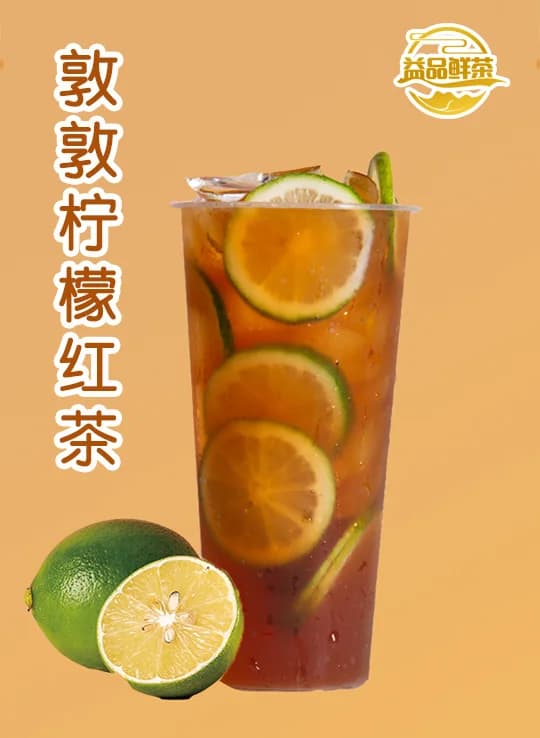
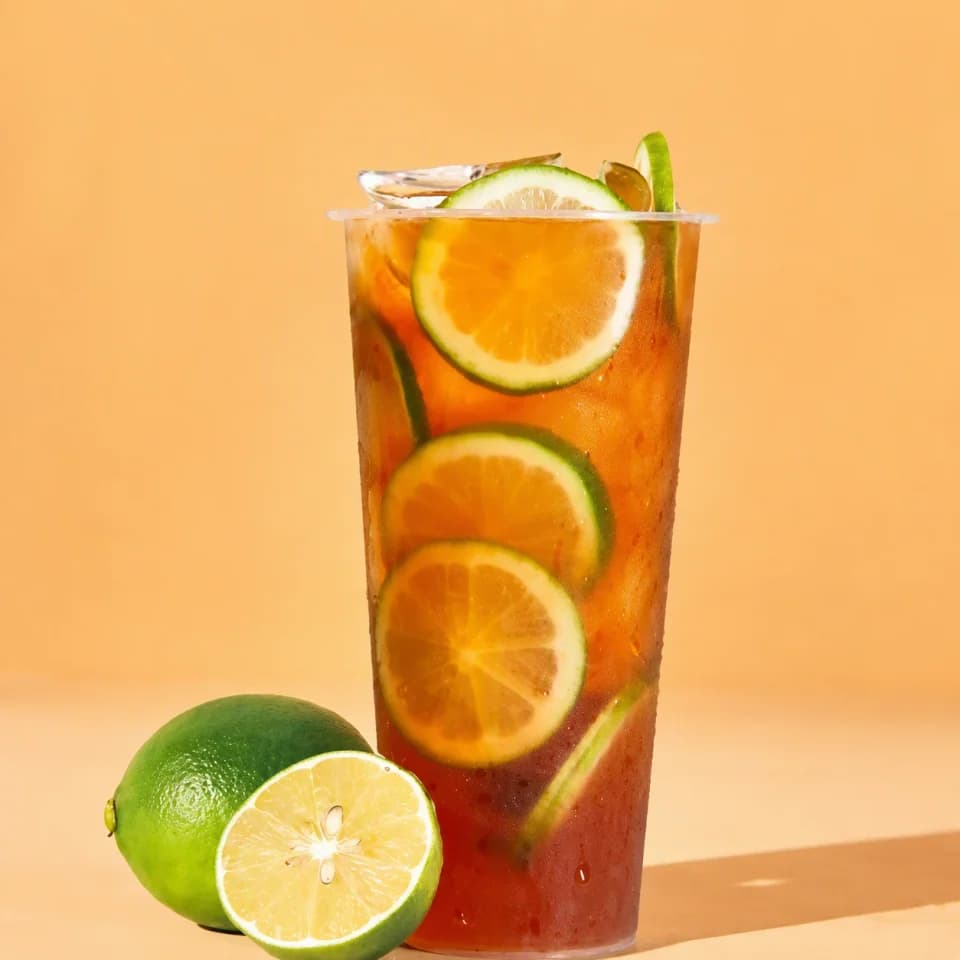
Both images are shown in full. Compare the drink, fruit, container and proportions before deciding whether a result represents your product accurately.
Prepare the photo for your menu layout
- Choose a clear original with the whole dish visible. Avoid photos where important ingredients or the serving container are cut off.
- Select a restaurant look and enhance the photo. Compare the result with your original before downloading it.
- Place the downloaded image in your menu tool. If you need cropping, text or a specific layout, make those adjustments there.
- Preview the finished menu at its actual display or print size. Make sure the crop, dish name and description agree with what you serve.
Check these details before publishing
Review every enhanced image before publishing. Check ingredients, portions, branding and visual accuracy against the dish you actually serve.
- Ingredients and portions: look for additions, missing items or changes in serving size.
- Packaging and branding: inspect cup shapes, logos and printed words. AI may alter small details or lettering.
- Food color: check that the image does not suggest a different ingredient or level of cooking.
- Final placement: review the image inside your menu, not only as a standalone download.
For delivery listings, also review the platform’s current image requirements. MenuGleam does not guarantee platform approval.
Menu photo questions
Can I use enhanced photos on a printed menu?
Check the downloaded image’s resolution at your intended print size and ask your printer about its requirements. Review a proof before printing. Enhancement does not guarantee that an image will suit every print layout or size.
Can I update my whole menu in one batch?
The current workflow enhances one photo at a time. Choose a restaurant, upload a dish photo and select a look for that image. Repeat for other menu items after reviewing each result.
Will my dish stay exactly the same?
AI can change details, including ingredients, portions and branding. Compare every result with the food you actually serve. Do not publish a result that misrepresents your dish.
Make your next menu photo look ready to sell.
Upload a real dish photo and see what MenuGleam can do.
Enhance Your Food PhotoEnhancements use credits. Review your result before publishing.